[Share] How to add Adsense Auto Ads and Sticky Ads to AMP
If you are a publisher, then after setting up AMP for the WordPress website, you care about adding Adsense ads to AMP. Making money is important, so is Lucid Gen. So this article Lucid Gen will show you how to add Adsense, Auto Ads, and Sticky Ads to AMP so that your AMP page has all kinds of Adsense ads for you to make money.
How to get Adsense ad code for AMP
First, you need to get the Adsense ad code for AMP. You go to Google Adsense > Ads > Overview, then click By ad unit. The types of Adsense ads inserted in AMP will have the AMP icon in the upper right corner.
Lucid Gen suggests that you choose Display ads because this is the most popular type of Adsense ads. You can reuse a previously created Display ads ad unit instead of creating a new one.

You click to get the ad code of any Display ads ad unit, then click AMP to get the Adsense ad code for AMP.
You just need to copy the code below. Lucid Gen's way does not need to copy the above paragraph.
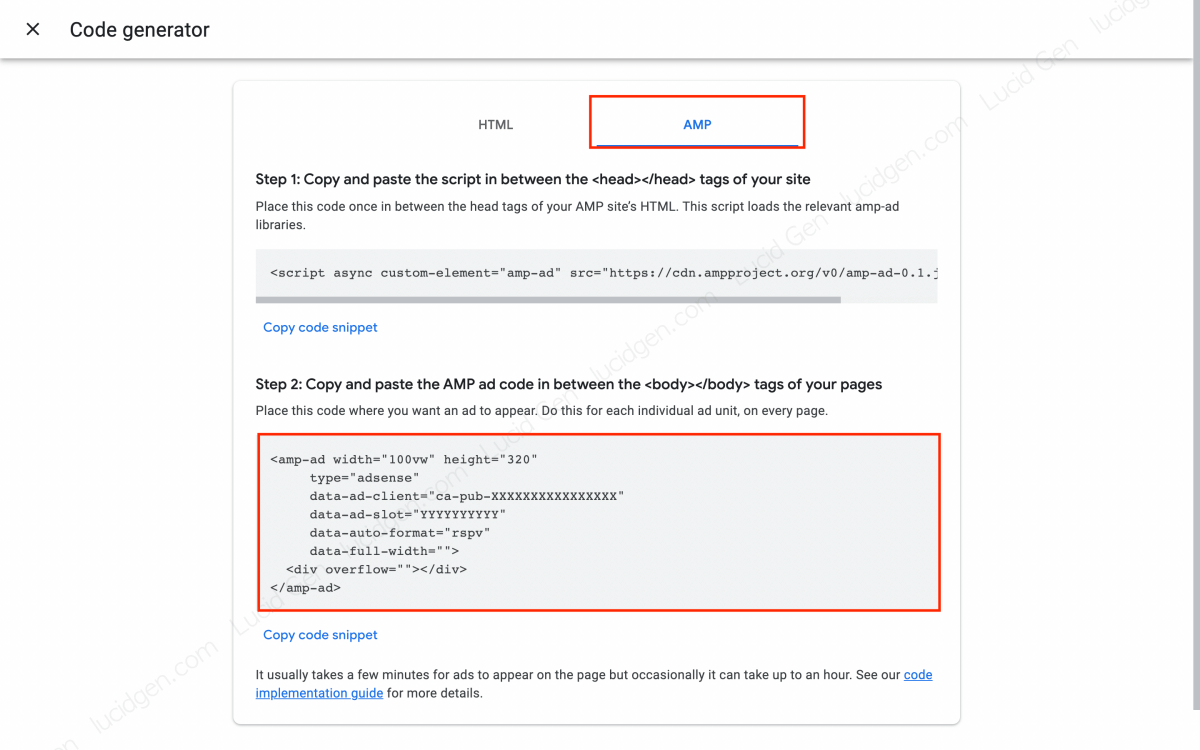
How to Add Adsense Ads to AMP in WordPress
Before you add Adsense ads to AMP, you need to pre-calculate the positions you want to insert. For example, before the content, after the 1st paragraph, after the Nth paragraph, etc. Then follow the instructions below.
Add Adsense to AMP with Ad Inserter
Ad Inserter is a plugin that I want to recommend to you; currently, Lucid Gen also uses this plugin. Although news themes usually support inserting ads in the content, Ad Inserter is smarter because it won't insert ads if the condition is not met. Or see the following comparison table to understand what I mean.
| Advertise for a page with 3 paragraphs | Other Themes or Plugins | Ad Inserter |
|---|---|---|
| After 1 paragraph | More ads | More ads |
| After 5 paragraphs | More ads | No more ads |
| After 15 paragraphs | More ads | No more ads |
| Result | There is 1 ad after 1 paragraph and 2 consecutive ads after the 3rd paragraph. | Only 1 ad after 1 paragraph |
Step 1: Go to Plugins > Add New to install the Ad Inserter plugin.

Step 2: Go to Settings > Ad Inserter to add a new ad. From 1 to 16 is the number of ads that Ad Inserter supports; you can start with whichever number you want.
Paste the Adsense code snippet created in the above step into the Ad Inserter, and you can also replace ca-pub-XXXXXXXXXXXXXX and YYYYYYYYYY with your client and slot code in the code below.
Step 3: You choose the location to insert Adsense ads into AMP at the Insertion section. Let Lucid Gen suggest you popular positions.
- Before post: Before the post title.
- Before content: Before the first paragraph of the article.
- Before paragraph: Before X paragraphs.
- After paragraph: After X paragraphs.
- After content: After the content of the article.
- After post: After the post comment (at the bottom of the post area).
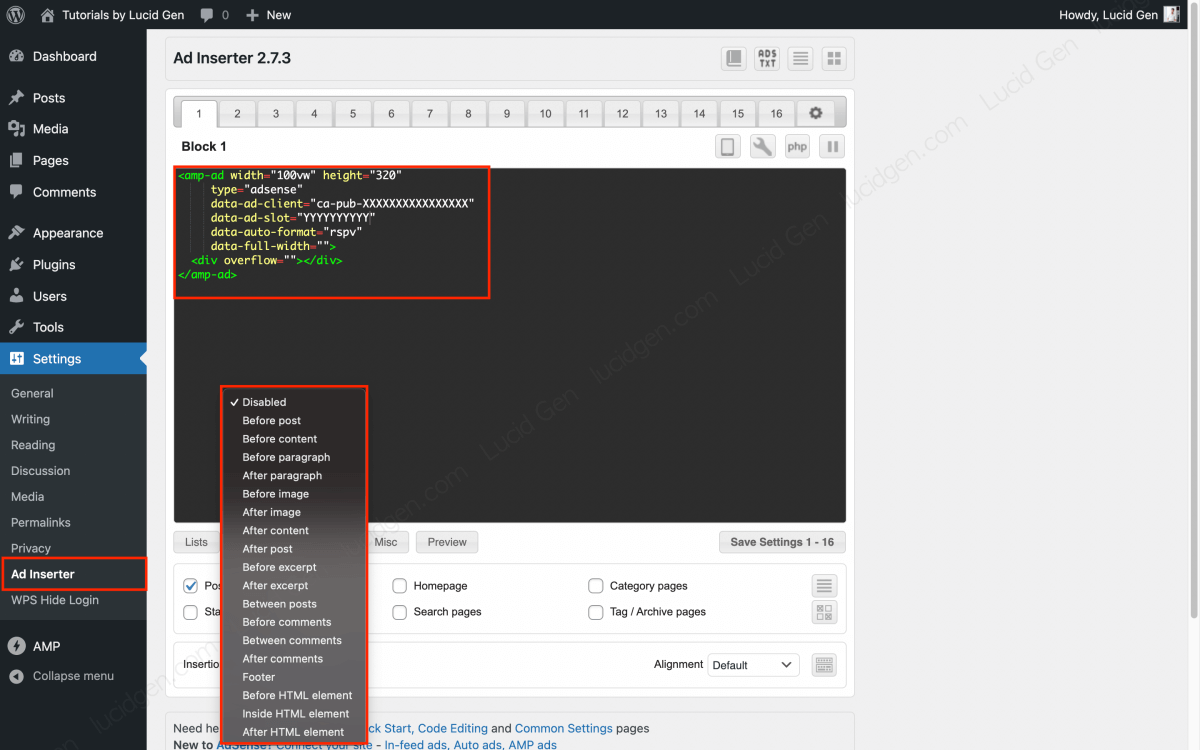
Step 4: You click the Misc button > turn on AMP pages > click Save Settings to finish adding 1 Adsense ad to AMP.

Repeat step 4 to add multiple ad units to different places in the content of your AMP page.
Add Adsense to AMP for WP
If you are using the AMP for WP plugin, you still use the Ad Inserter to insert ads in the middle of the AMP page content as instructed above. The AMP for WP plugin has support for adding ads to AMP pages. Still, it doesn't support Before paragraph and After paragraph placement like Ad Inserter.
To add Adsense ads to the AMP for WP plugin, go to AMP > Settings > Advertisement. You turn on the ad placement you want and then paste your Client and Slot code in.
You should turn on Responsive Ad unit to make full-screen ads look better.

How to Add Auto Ads to AMP in WordPress
Adsense's Auto Ads feature will automatically insert ads into the appropriate positions on your website based on the intelligence of Google's AI. Fortunately, AMP also supports Auto Ads. Lucid Gen will show you 3 ways to add Auto Ads to AMP in WordPress; choose the one that works for you.
Add Adsense Auto Ads to AMP with Ad Inserter
If you are already using the Ad Inserter plugin, then this is the best way for you. Go to Settings > Ad Inserter and paste the ad code below into Ad Inserter. Don't forget to change ca-pub-XXXXXXXXXXXXXXXX to your Client code.
Next, you choose the position to insert the ad as Footer in the Insertion section. Then you click the Misc button and enable AMP pages and then click the Save Settings button.

Add Adsense Auto Ads to AMP with theme functions
Another way to add Auto Ads to AMP without that plugin is using theme functions. Paste this code into the functions.php file in your theme. Remember to replace ca-pub-XXXXXXXXXXXXXXX with your Client code.
//Adsense Auto Ads by LucidGen.com
add_action('amp_post_template_footer','adsense_amp_footer');
function adsense_amp_footer($amp_template)
?>
- Method 1: You go to the file manager on your hosting under the path public_html/wp-content/themes/your-theme/functions.php
- Method 2: Go to Appearance > Theme Editor > select functions.php

If possible, please use Child theme so that this code is not lost when you update the original theme.
Add Adsense Auto Ads to AMP for WP
Using the AMP for WP plugin, you can easily add Auto Ads without any additional plugins. Go to AMP > Settings > Advance Settings and paste the Auto Ads code into the Enter HTML in Footer section. After that, please change ca-pub-XXXXXXXXXXXXXXXX to your Client code and save.

How to Add Sticky Ads to AMP in WordPress
Sticky Ads are permanently displayed below the phone's screen, just like Auto Ads in the non-AMP version. To add Sticky Ads to AMP, we also have 3 ways as above, only the code for Sticky Ads is different. Please choose the one that is right for your website.
Add Adsense Sticky Ads to AMP with Ad Inserter
If you have added Auto Ads to AMP with the Ad Inserter plugin, you must paste the following Sticky Ads code in the same position as Auto Ads.
If you don't use Auto Ads, that's okay; Lucid Gen will guide you again. Go to Settings > Ad Inserter and paste the code above. Then, select the location to add the ad as Footer in the Insertion section. Finally, you click the Misc button to turn on the AMP page and then click Save Settings.
Note: Don't forget to change ca-pub-XXXXXXXXXXXXXXXX and YYYYYYYYYY to your Client and Slot codes.

Add Adsense Sticky Ads to AMP with theme functions
If you are not using the Ad Inserter plugin, this is the second way to add Sticky Ads to AMP. Please insert this code (including Auto Ads and Sticky Ads) into the theme's functions.php file.
//Adsense Auto Ads & Sticky Ads by LucidGen.com
add_action('amp_post_template_footer','adsense_amp_footer');
function adsense_amp_footer($amp_template)
?>
- Method 1: You go to the file manager on your hosting under the path
public_html/wp-content/themes/your-theme/functions.php. - Method 2: Go to Appearance > Theme Editor > select
functions.php.
Note: Remember to change ca-pub-XXXXXXXXXXXXXXXX and YYYYYYYYYY to your Client and Slot code.

Add Adsense Sticky Ads to AMP for WP
If you are using the AMP for WP plugin, adding Sticky Ads to AMP is similar to Auto Ads. Paste the code below into the Enter HTML in Footer box in AMP > Settings > Advance Settings.
Note: Please change ca-pub-XXXXXXXXXXXXXXXX and YYYYYYYYYY to your Client and Slot codes.

Frequently asked questions
Why doesn't Lucid Gen's tutorial include script insertion in ?
Now that AMP plugins are smarter than before, they will automatically add script tags based on the HTML contained in the AMP page. You can press F12 to check. If your AMP pages don't insert script tags themselves for some reason, you can add the following code to your theme's functions.php file.
add_action('amp_post_template_head','adsense_amp_head');
function adsense_amp_head($amp_template)
?>
Already added the Adsense code, but no ads appear?
According to Lucid Gen's experience, Display ads will be displayed immediately (if not displayed, you must review if you did something wrong at any step). Auto Ads will show up after a few days; if you first add Auto Ads to AMP, you will easily see Auto Ads in long articles. Sticky Ads will be displayed immediately, but depending on the time and the article.
Epilogue
We can add all 3 types of ads (Unit, Auto Ads, Sticky Ads) of Adsense to an AMP page, thus helping you to optimize more revenue. If you find this article has helped you or not, please leave a comment below so that Lucid Gen can learn from it for new articles.
Nguồn (Source): How to add Adsense Auto Ads and Sticky Ads to AMP
Nhận xét
Đăng nhận xét